Help Center
MealDay for Vendors
If you cook for an organization, MealDay is where you publish meals, set the menu schedule, and see what to prepare each day. You use the same dashboard as staff, filtered to the tools you need.
For Vendors
Managing your catalog and kitchen
Get access
An organization admin invites you. Accept the invite, then sign in at the organization’s MealDay address. You’ll land on your Kitchen view.
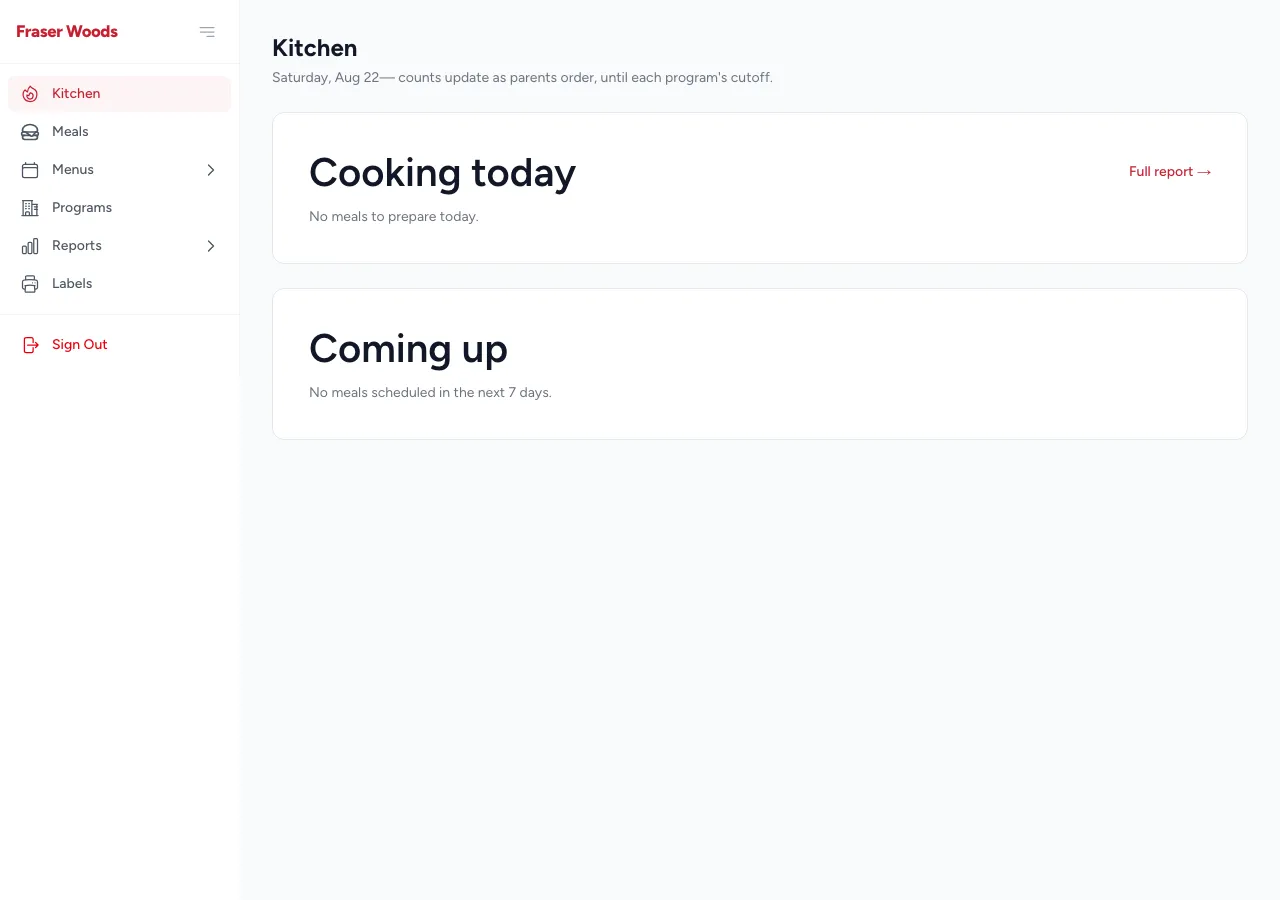
Kitchen — what to cook today
The kitchen view answers “what am I making, and for whom?” It lists the day’s meals per program with counts for each meal and option, plus allergy flags to watch for.
Build your meals
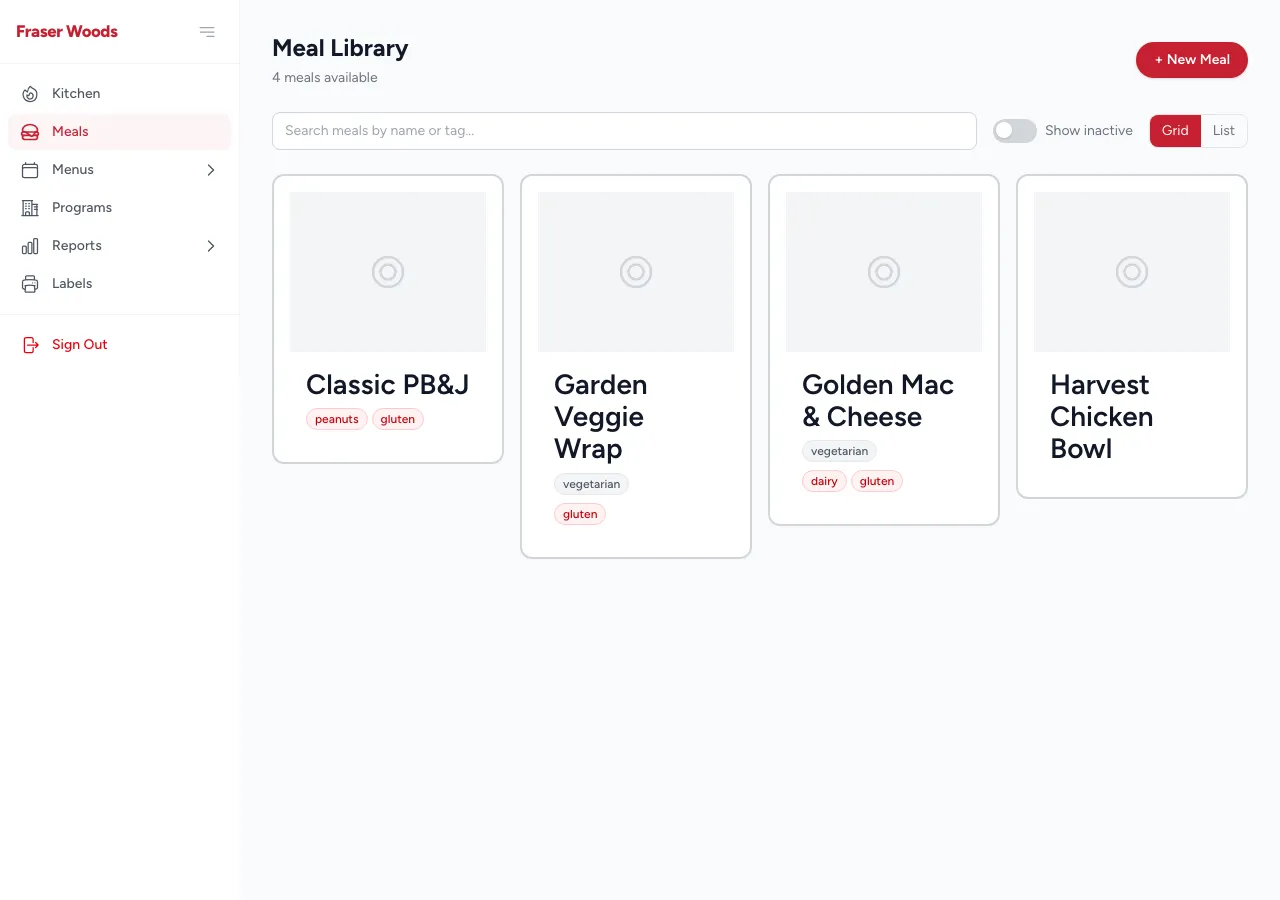
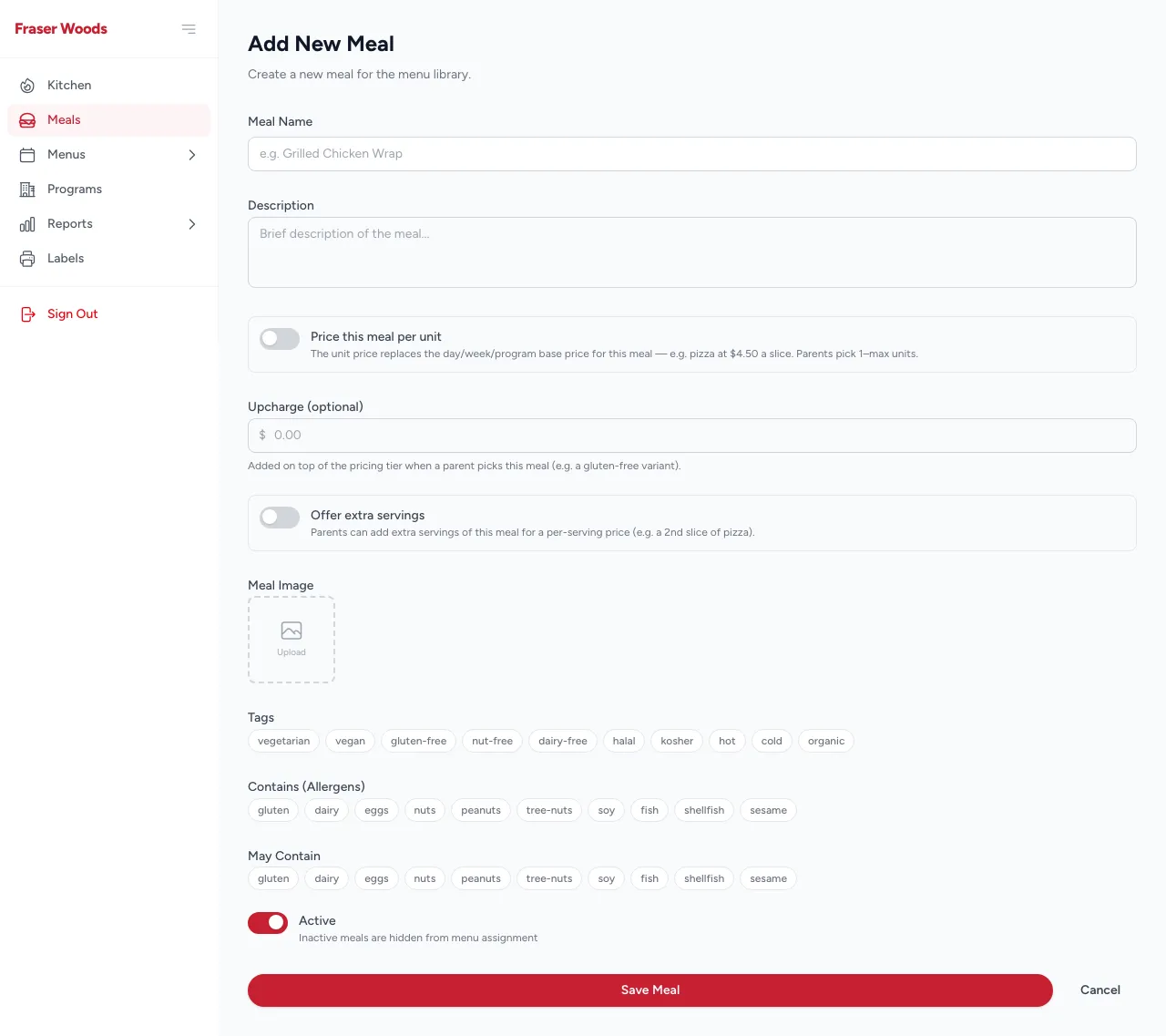
The Meals page is your catalog. Add a meal with a name, description, photo, and its allergens. Meals can offer variants — for example a preparation or size choice — which parents pick when ordering.
- Open Meals and choose New Meal.
- Fill in the name and description, upload a photo, and list every allergen.
- Add any variants, then save.
- Edit a meal any time from its Edit screen — update the description, swap the photo, or adjust allergens and variants.
Schedule the menu
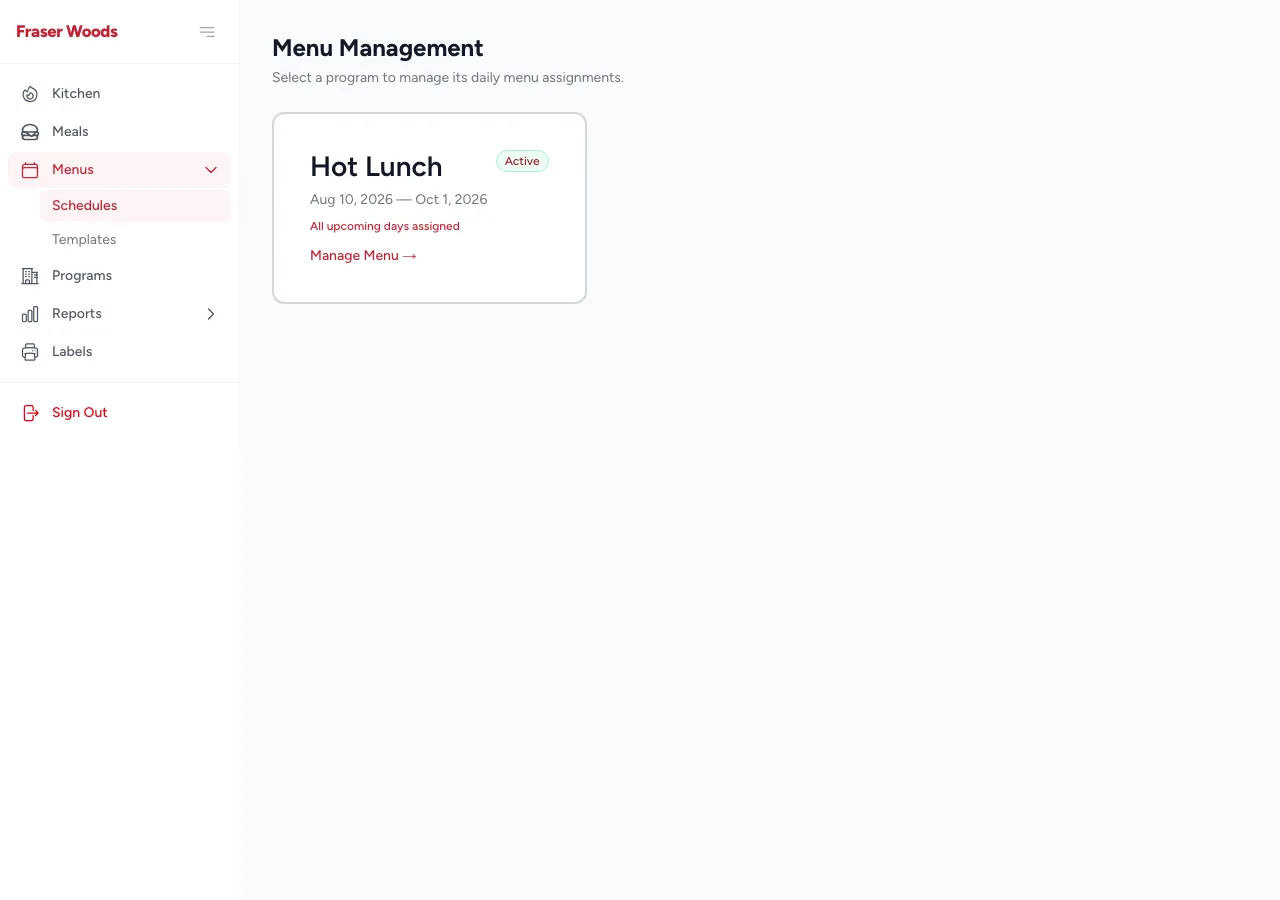
Menusis where you decide which meal appears on which day of a program. Open a program’s menu and assign meals to its dates.
Reuse a week with templates
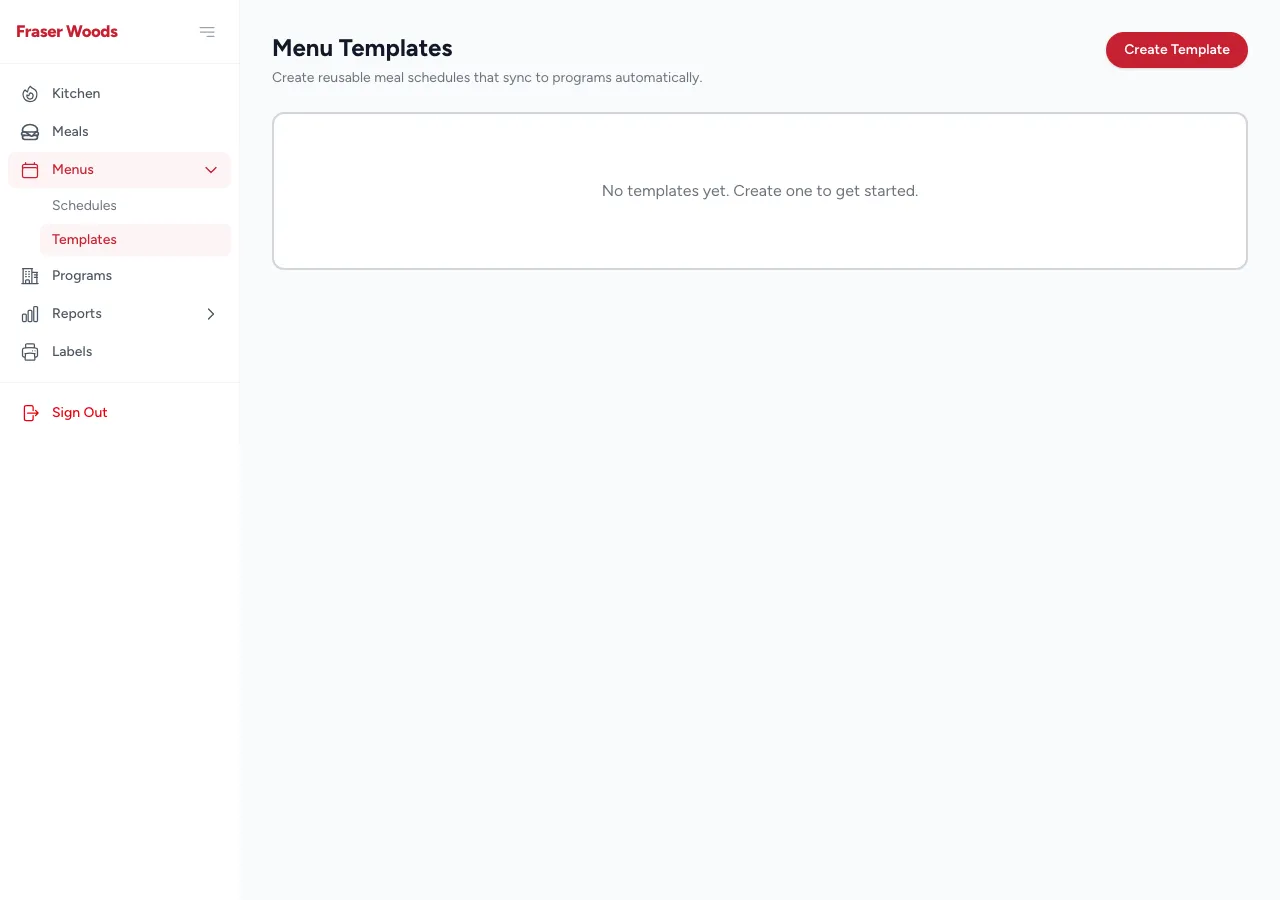
If your menu repeats, build a template— a reusable week of meals — and sync it onto a program’s dates instead of filling them in one by one. Syncing shows you exactly what will change before you confirm.
Pull reports
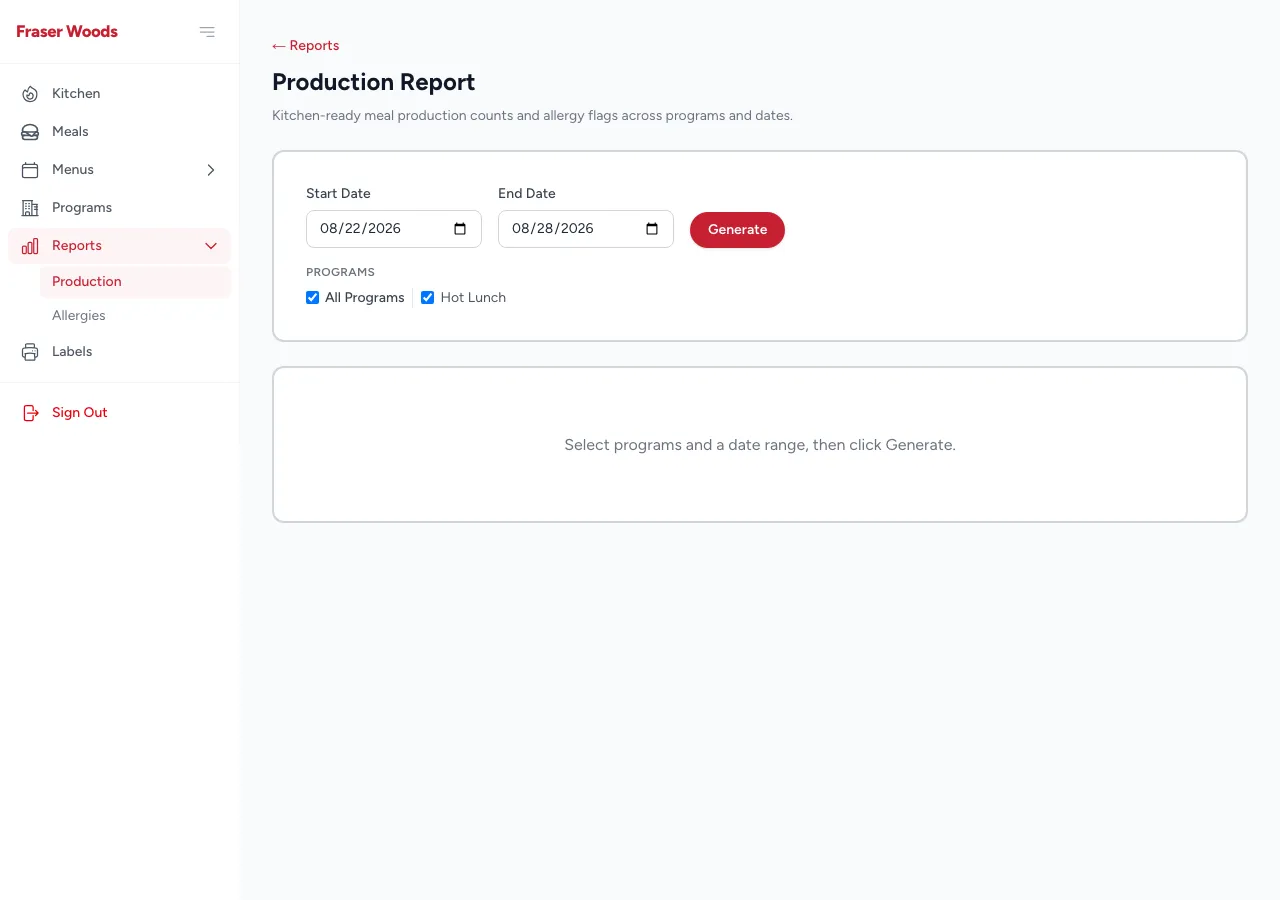
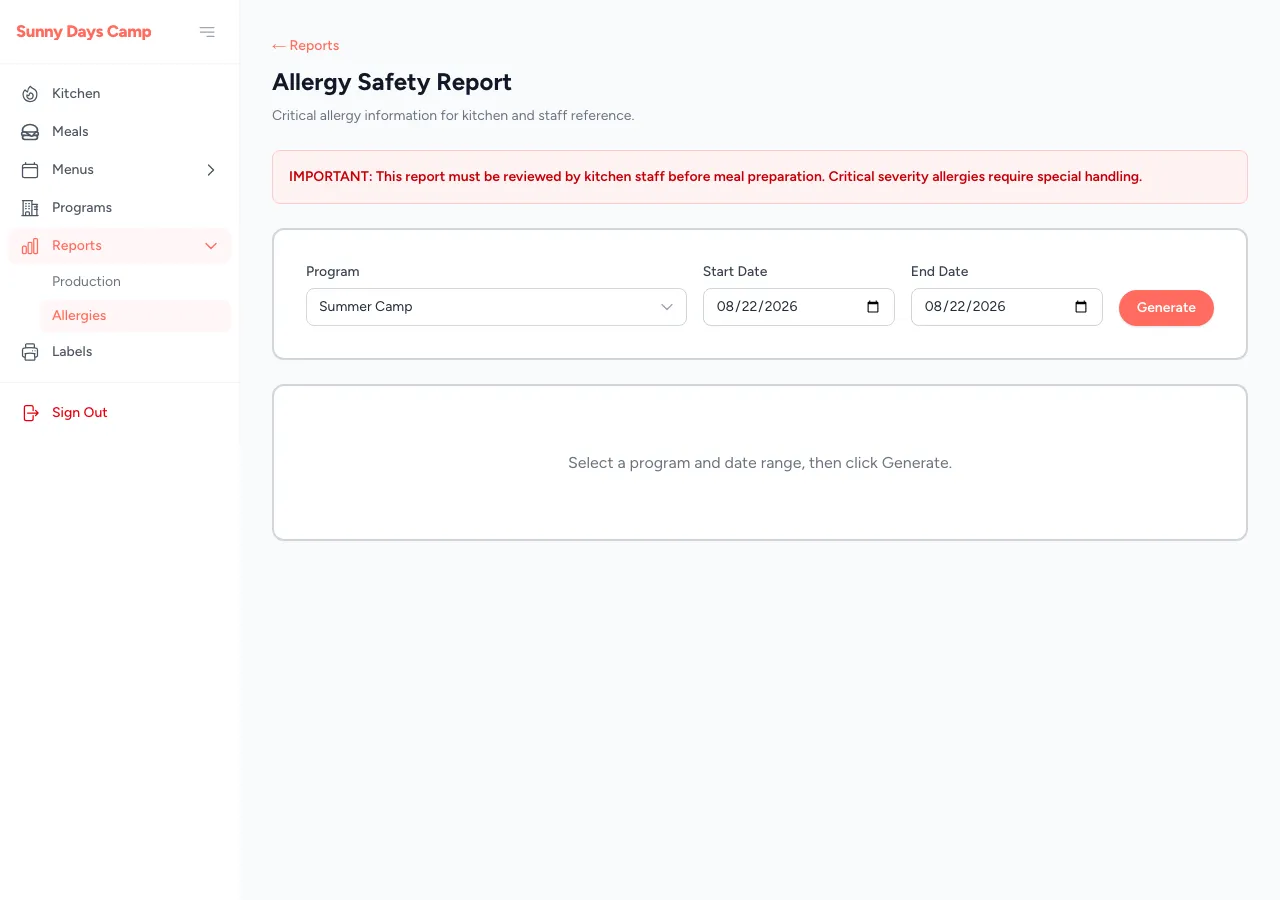
Two reports keep the kitchen running:
- Production report — how many of each meal to make.
- Allergy report — which orders carry allergy flags, so nothing slips through.
Automatic report emails
Optional
Connect an AI assistant
When your organization enables it, you can connect an AI assistant — such as Claude — to MealDay. A vendor connection manages your catalog and pulls reports through a focused set of tools — the common tasks below, not every screen.
How to connect
- In your assistant’s connector settings, paste the full URL
https://mealday.app/api/mcp. - Sign in through the browser and approve the connection. You pick which “hat” it acts as — parent, vendor, staff — based on what you already are.
- Manage or revoke connections any time under Settings → AI Assistants.
Money always happens in your browser
What your assistant can do
| Tool | What it does |
|---|---|
list_my_programs | List the programs you cook for. |
list_meals / get_meal | Browse your meals and open one. |
get_program_menu | See a program's menu schedule. |
list_templates / get_template | Browse and open menu templates. |
get_orders_report | Pull an orders report. |
allergy_report | Pull an allergy report. |
create_meal / update_meal | Create and edit meals. |
add_meal_variant / update_meal_variant | Manage meal variants. |
set_meal_photo | Upload or replace a meal photo. |
create_template | Create a menu template. |
set_program_menu | Set the meal for a program date. |
set_pricing_rule | Set pricing (where you have permission). |
delete_meal / delete_meal_variant / delete_template | Remove items — with a preview then a confirm step. |
update_template / sync_template | Edit a template and push it to programs (preview, then confirm). |
If you also order as a parentat this organization, the same connection carries your family’s parent tools too — see the parent guide.
Still stuck?
Get more help
For questions about your specific orders, menus, or program, contact your organization directly — their contact details are in the footer of your organization’s MealDay pages. For questions about the MealDay platform itself, see our Terms of Service and Privacy Policy.