Help Center
MealDay for Admins
Owners and admins run the organization: programs and pricing, menus, orders and refunds, and most settings. Staff see the same operational tools without the settings. A few areas are owner-only — connecting Stripe, platform billing, team management, timezone, and notification recipients — and are marked below.
For Admins
Running your organization
The admin dashboard
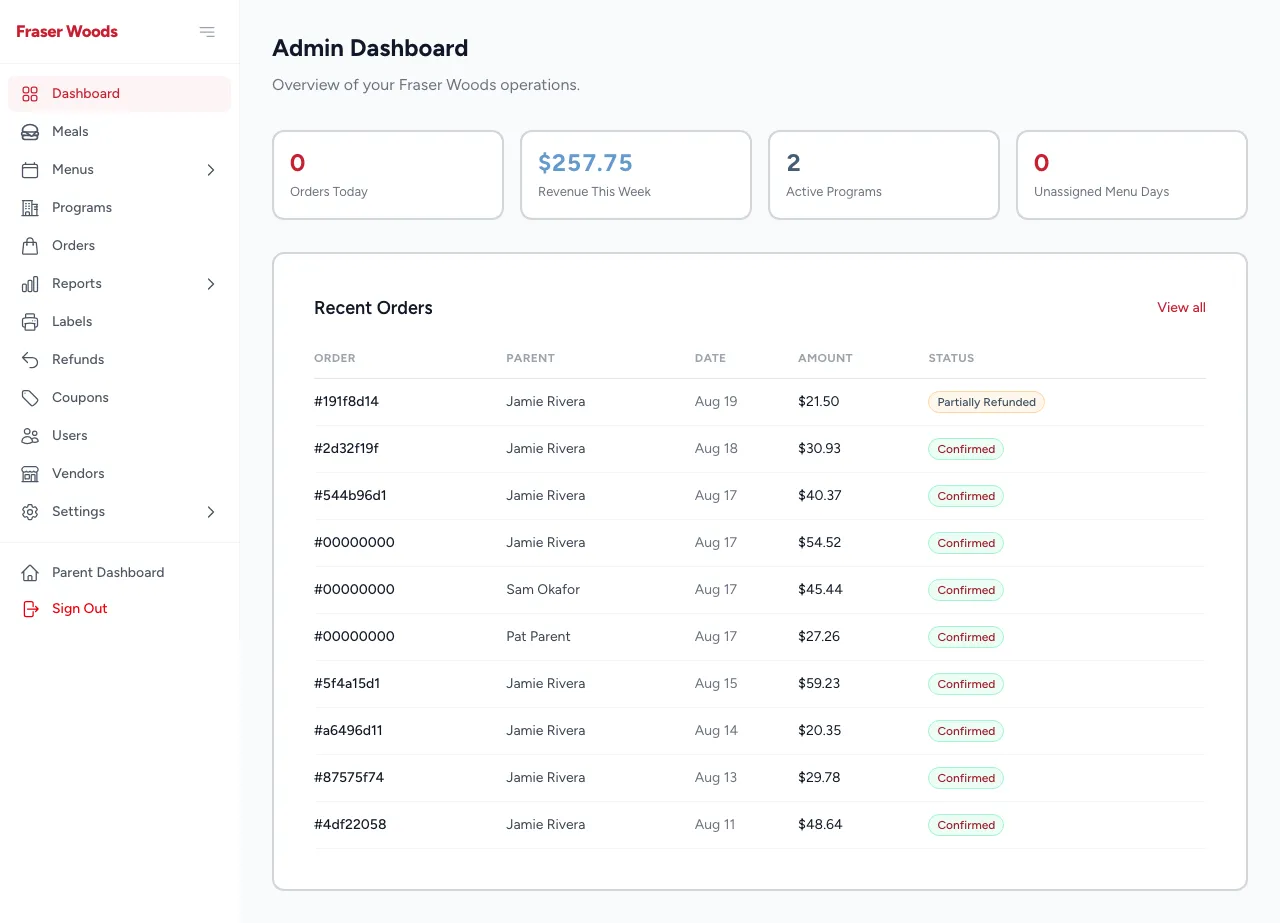
Your dashboard summarizes the day: orders today, revenue this week, active programs, and any menu days that still need a meal assigned. A recent-orders table gives you a quick pulse.
Connect payments first (owner only)
This one's owner-only
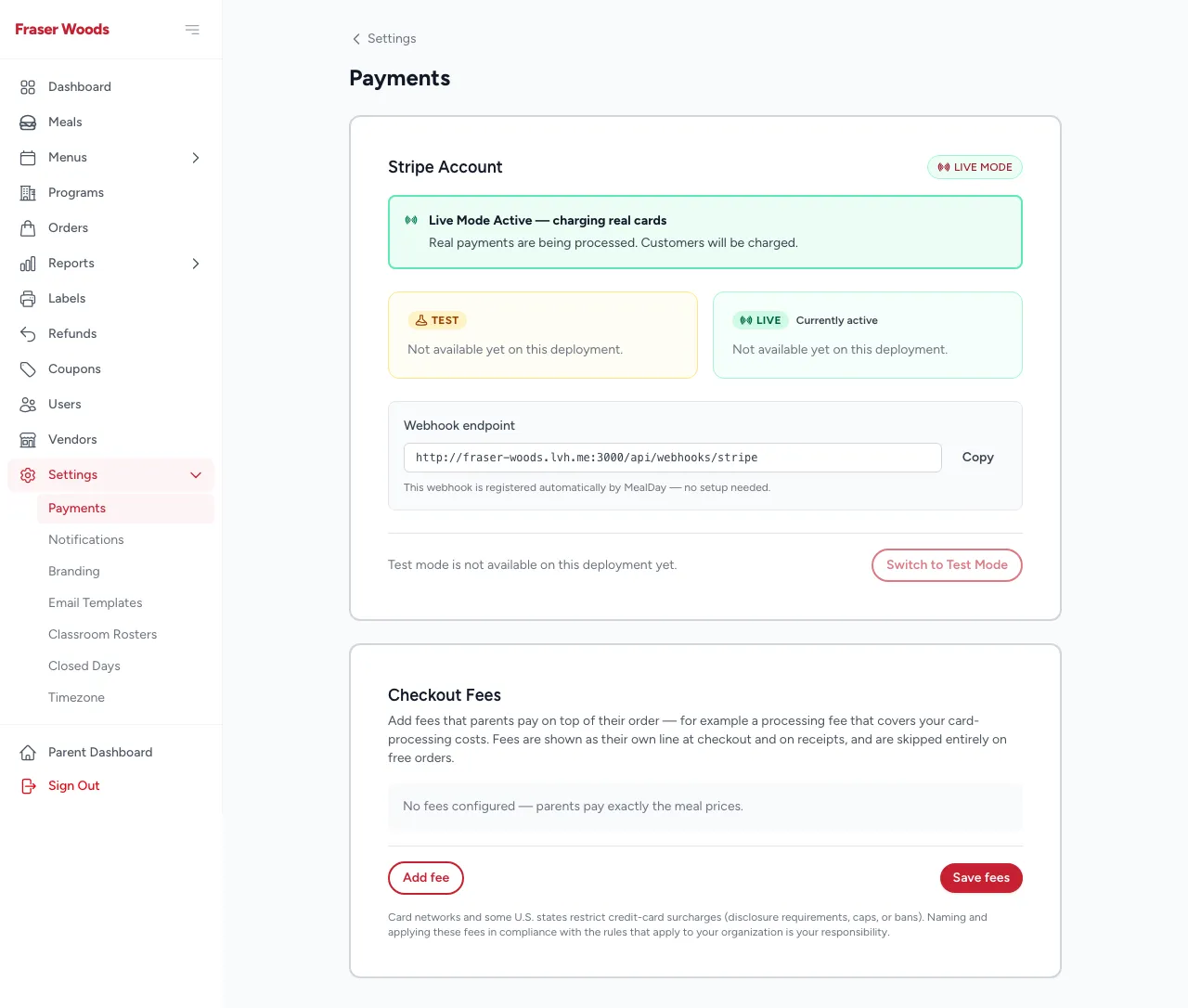
Before parents can pay, the owner connects your organization’s Stripe account under Settings → Payments. MealDay uses Stripe Connect, so money goes directly to your account.
- Open Settings → Payments and connect Stripe.
- MealDay registers the payment webhook for you — no manual setup.
- Optionally add a checkout fee (for example to cover processing costs). Fees show as their own line at checkout and are skipped on free orders.
Zero-dollar orders work without Stripe
Create programs and pricing
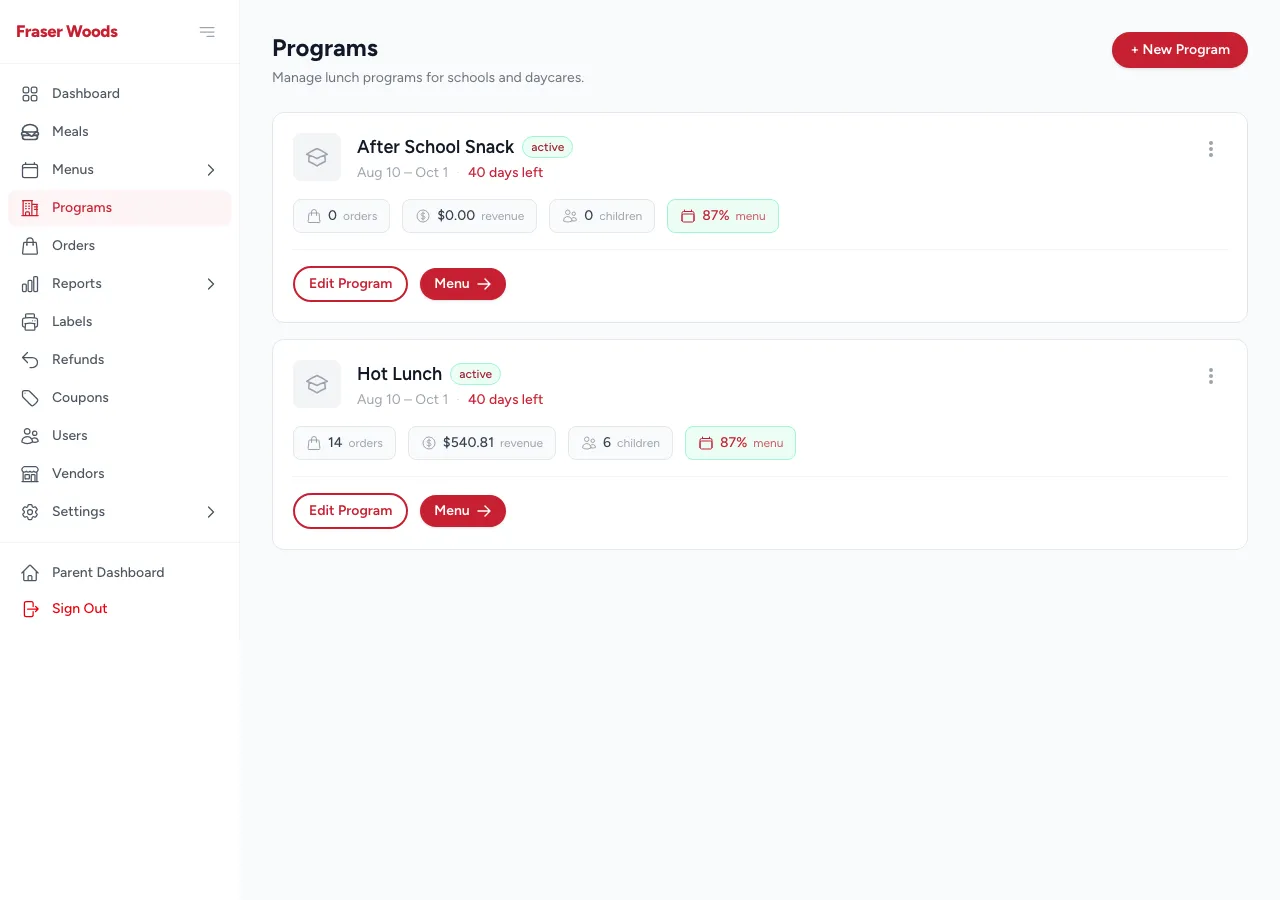
A program is a thing families order from — a summer camp, an after-school club, a school lunch term. Under Programs you create programs, set up their weeks and ordering cutoffs, and define pricing rules.
Set the menu
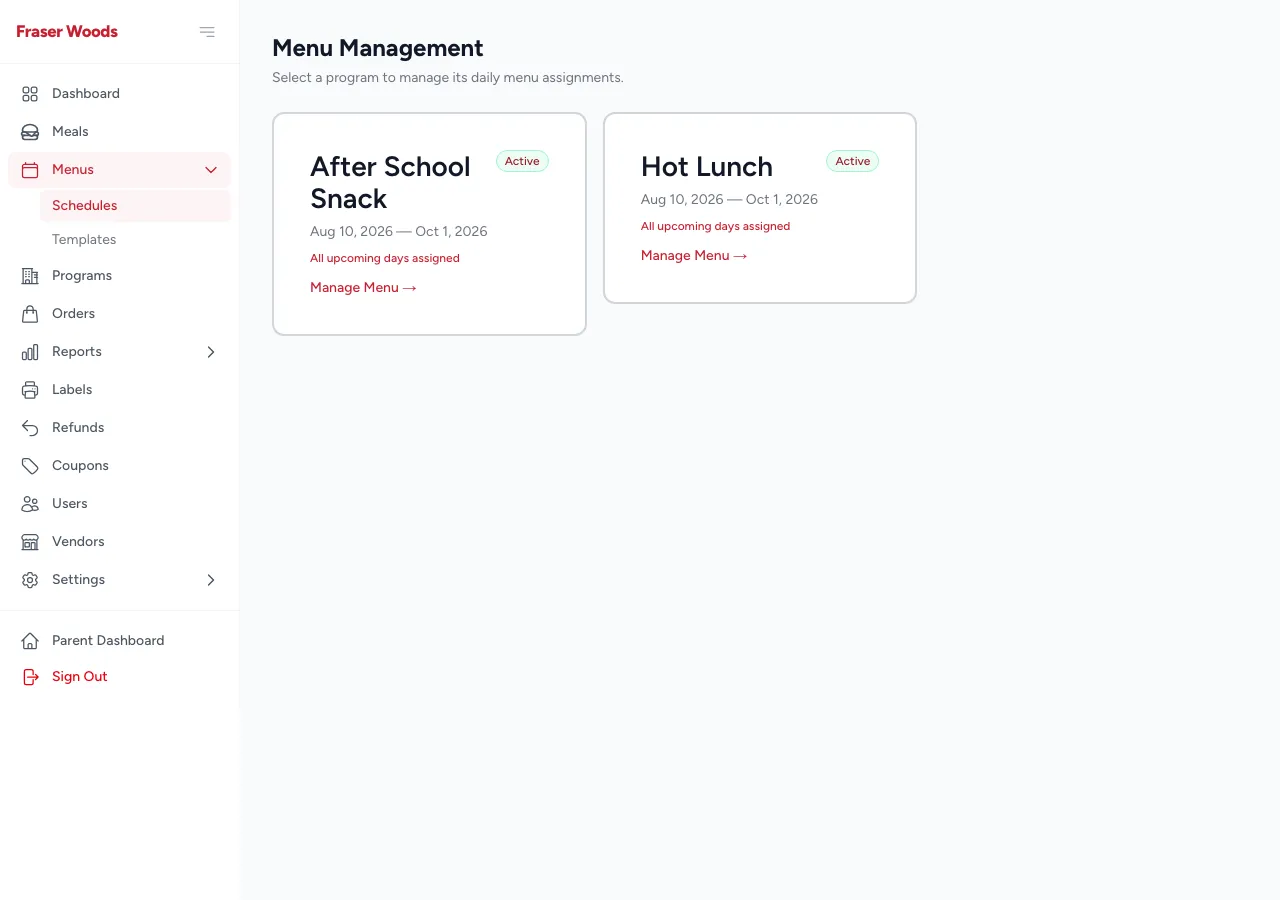
Under Menus, assign meals to each program’s dates (or sync a template). The dashboard warns you when upcoming dates have no meal assigned yet.
Manage orders
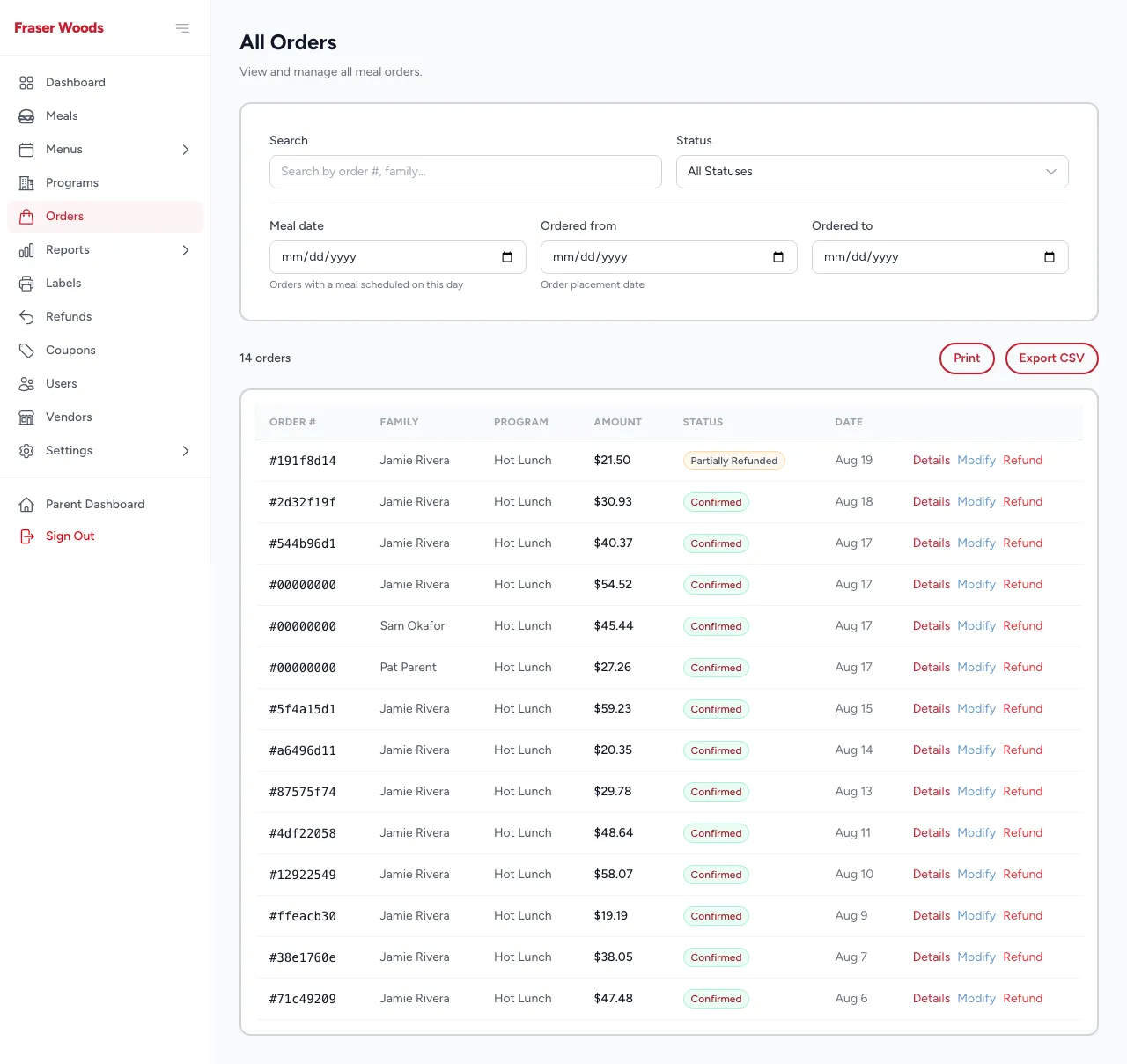
Orderslists every order across your organization. Open one to see its details. You can send a payment link for an unpaid order, or modify an order on a family’s behalf.
Issue refunds
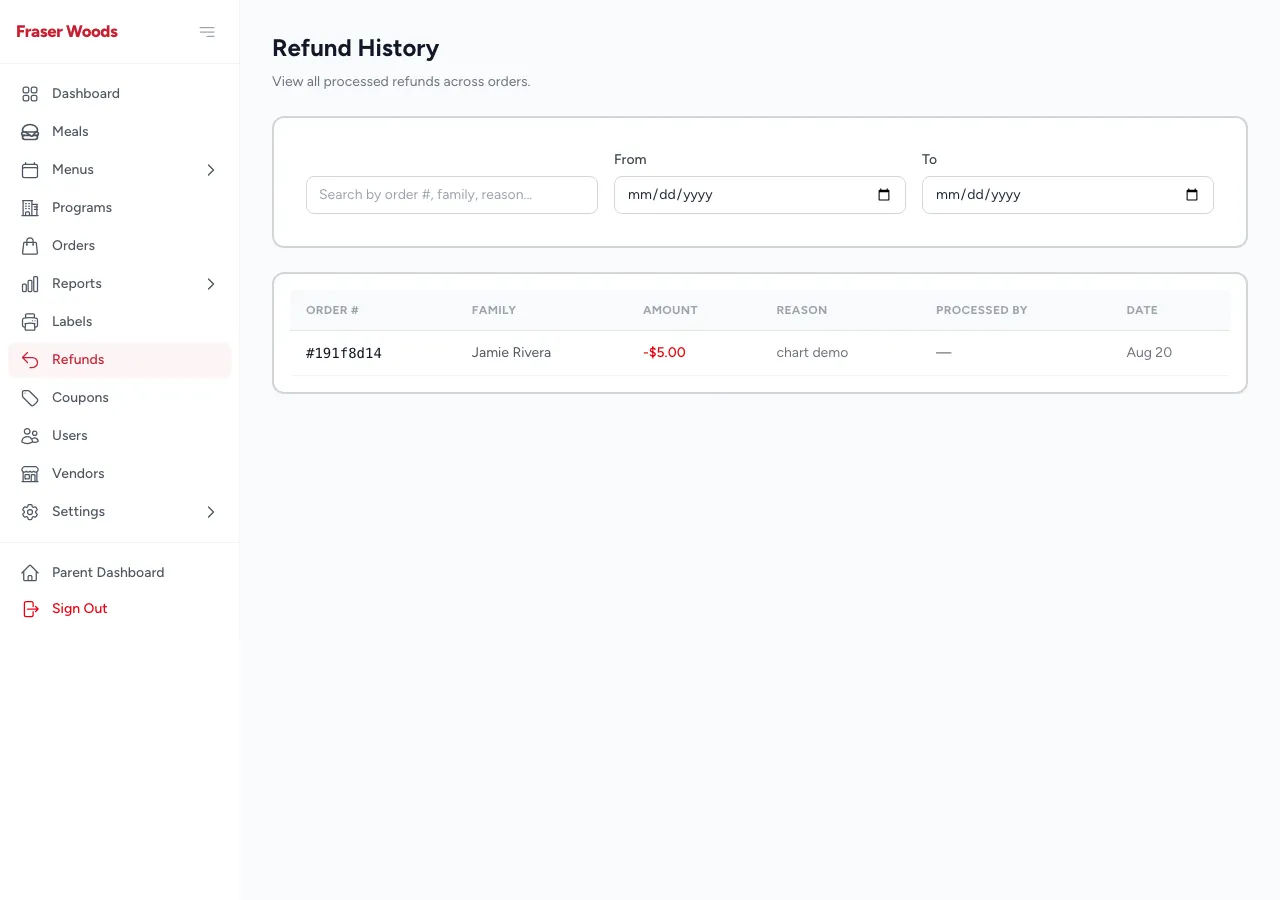
Under Refunds you can return money to a family. A refund can never exceed what was actually captured, and refunded amounts are reflected across your reports and dashboard.
Create coupons
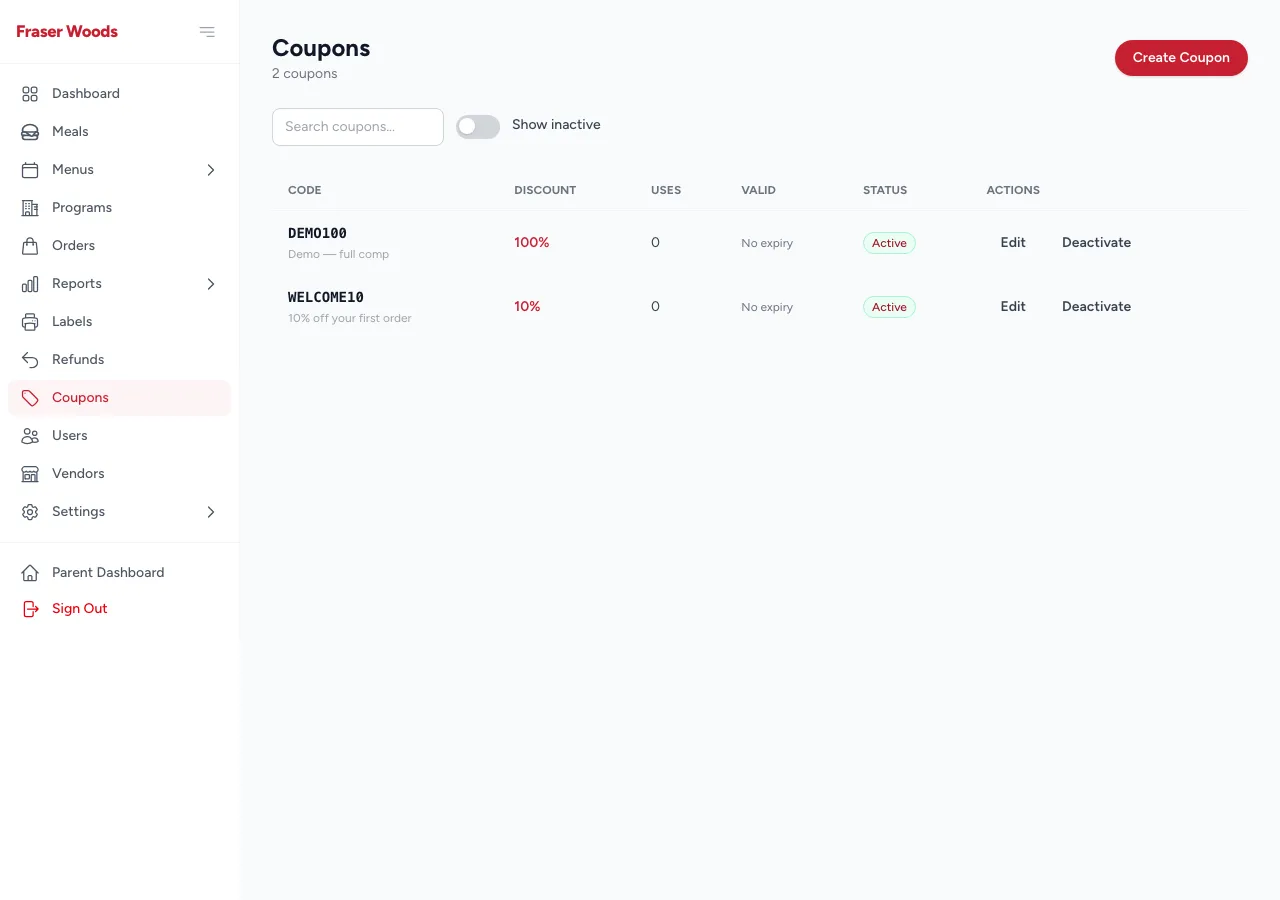
Build discount codes under Coupons — a percentage or fixed amount, with optional limits. Families enter the code at checkout.
Invite members and manage roles (owner only)
Owner-only
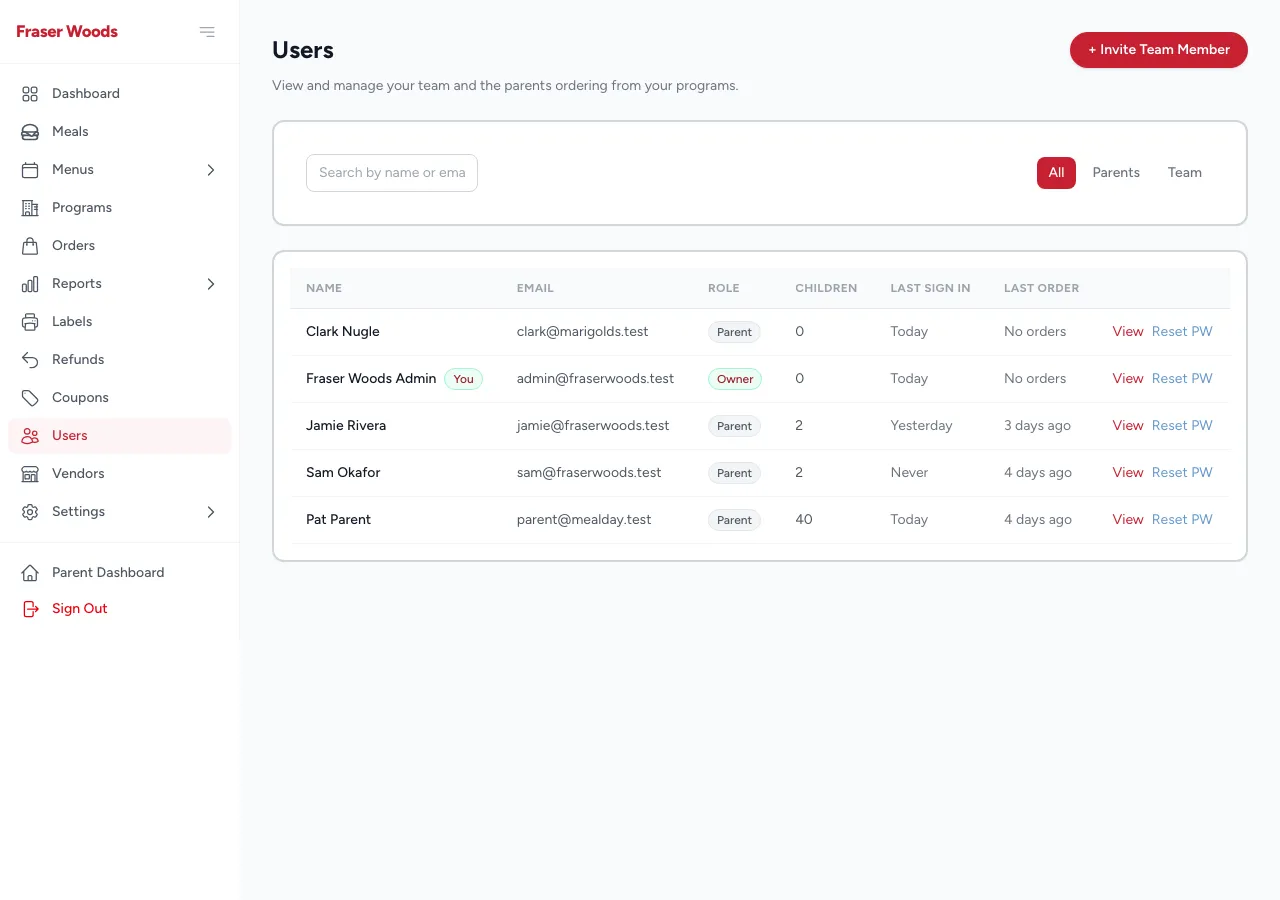
Under Users, the owner invites people and sets each person’s role. Roles control what someone can do:
- Owner — everything, including payments, billing, and team management.
- Admin — programs, menus, orders, refunds, coupons, and most settings.
- Staff — day-to-day operations (orders, menus, reports) without settings.
Vendorsaren’t added here — they’re invited from the Vendors page (see below), which admins can use too.
Manage vendors
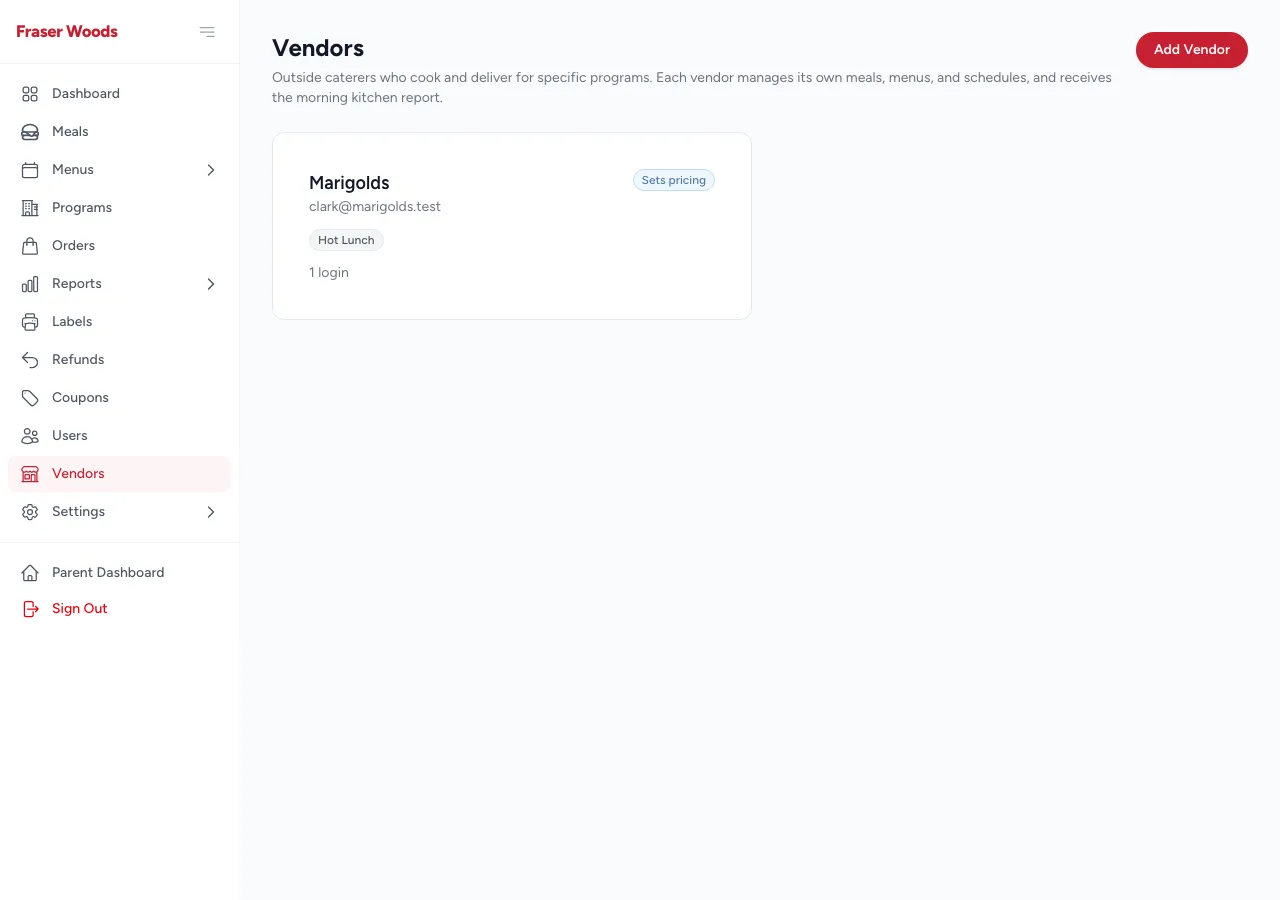
When the vendors feature is on, Vendors lets you add a food vendor, invite their team, assign the programs they cook for, control their catalog access, and set who receives their report emails. Point your vendors at the vendor guide.
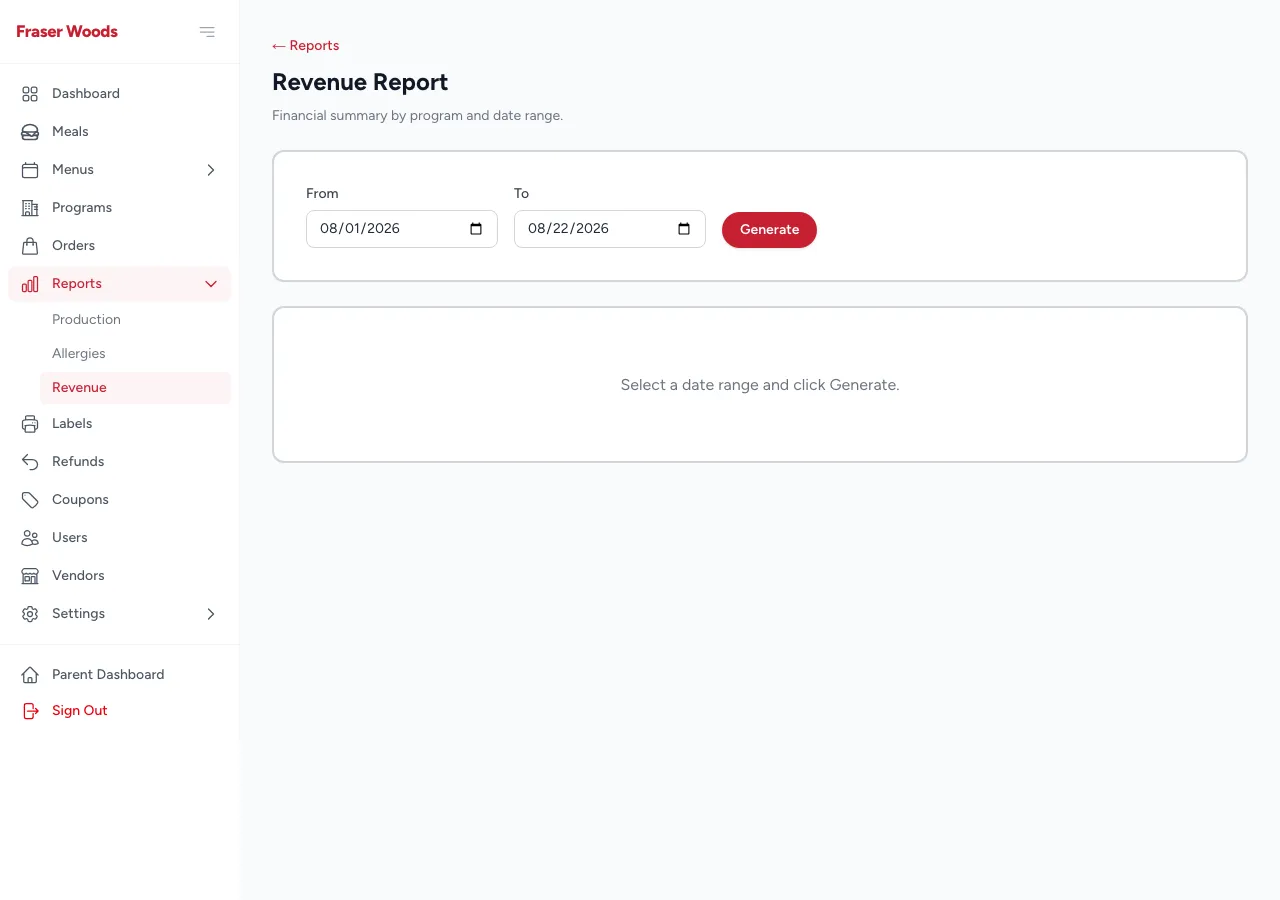
Reports, including revenue
Admins and staff get the production and allergy reports vendors use, plus a revenuereport for the money side. (Vendors don’t see revenue.)
Configure your organization
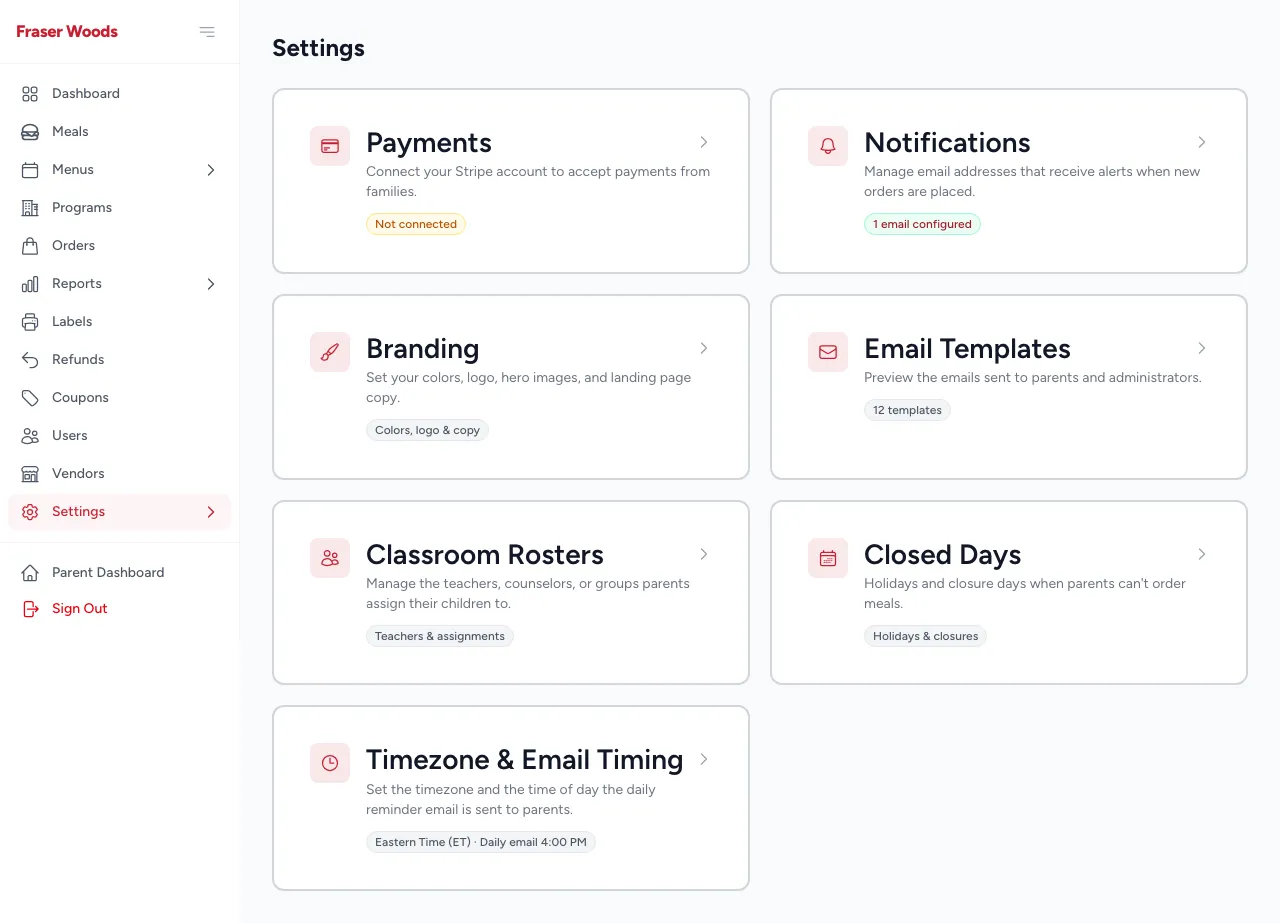
The Settings area holds everything else. Most of it is open to admins; a few areas are owner-only, noted below.
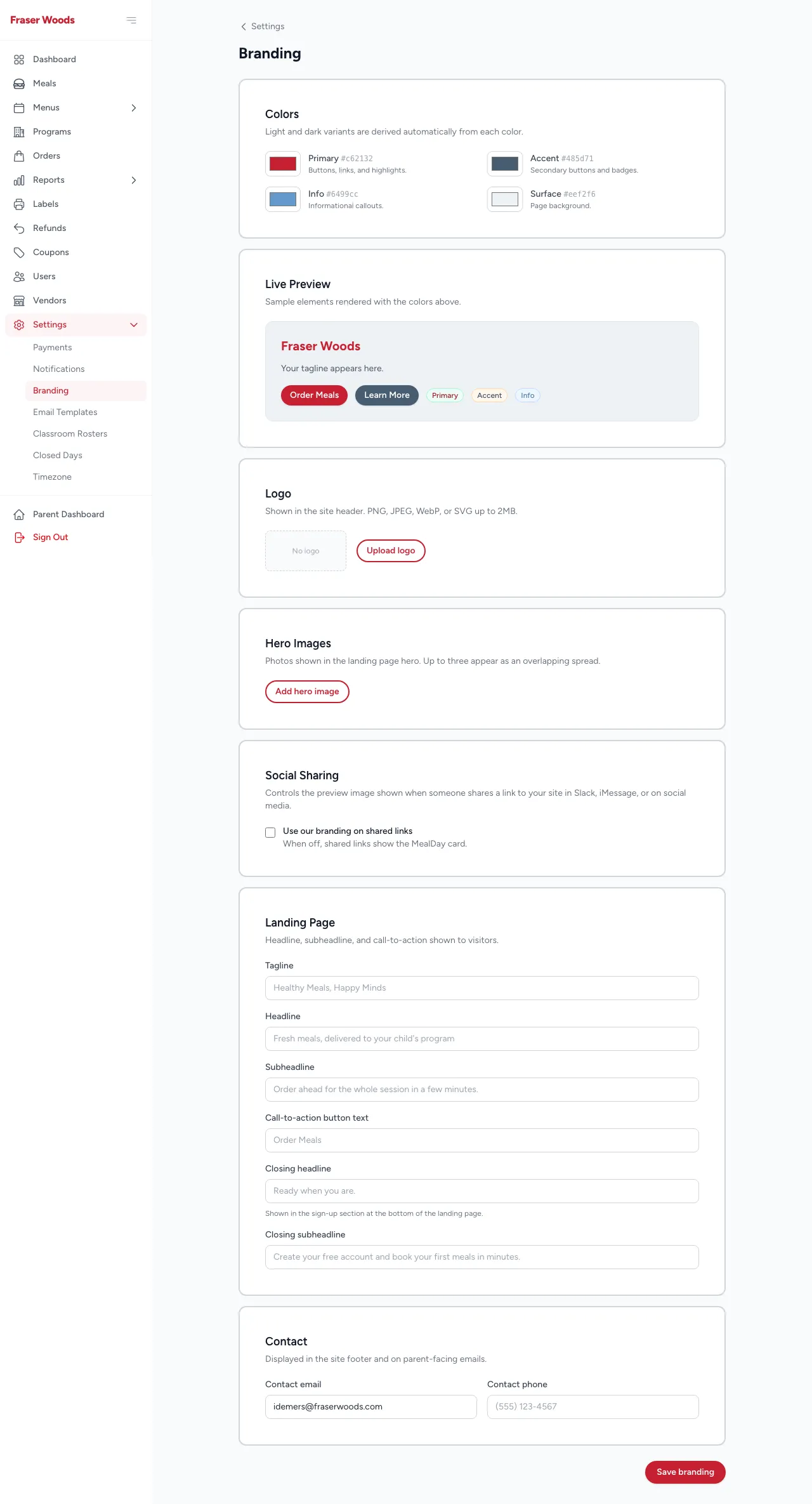
- Branding — your logo, colors, landing-page copy, and contact details.
- Timezone (owner only) — the time zone all cutoffs and reminders are calculated in.
- Notifications (owner only) — who gets order-notification emails.
- Email Templates— preview the emails families receive, so you know exactly what they’ll get.
- Closed Days— mark holidays and closures so those dates can’t be ordered.
- Classroom Rosters — when enabled, add and edit roster entries (teachers/counselors), assign them to programs, and configure the roster report.
- AI Assistants — configure and review MCP connections.
Owner-only settings
Optional
Connect an AI assistant
When your organization enables it, staff and admins can connect an AI assistant — such as Claude — to MealDay. An assistant works with a role-scoped set of tools — never more than your role allows, and a focused subset of the full site: the common tasks below, not every screen.
How to connect
- In your assistant’s connector settings, paste the full URL
https://mealday.app/api/mcp. - Sign in through the browser and approve the connection. You pick which “hat” it acts as — parent, vendor, staff — based on what you already are.
- Manage or revoke connections any time under Settings → AI Assistants.
Money always happens in your browser
What a staff connection can do
Staff connections give org-wide operational visibility.
| Tool | What it does |
|---|---|
list_programs / list_meals / get_menu | Browse programs, meals, and menus org-wide. |
list_orders / get_order | See all orders across the organization. |
production_report | Pull the kitchen production report. |
allergy_report | Pull the allergy report. |
revenue_summary | See a revenue summary. |
Refunding an order needs admin permission, so refund_order is available on an admin connection, not a plain staff one — see below.
What an admin connection can do
An admin connection gets everything a staff connection can do, plus refund_order and the full vendor catalog toolset org-wide — so an admin never needs a separate vendor connection. And if you also order as a parent at your own organization, you get your own parent tools too.
One connection, all your hats
my_programs, my_menu, and my_orders so both views are available.Still stuck?
Get more help
For questions about your specific orders, menus, or program, contact your organization directly — their contact details are in the footer of your organization’s MealDay pages. For questions about the MealDay platform itself, see our Terms of Service and Privacy Policy.